Overview · Free basics, Pro extras
Home screen
Widgets & alerts
Your signal at a glance, without opening the app: a live colour meter, a history graph, and a notification when something goes wrong.
Your signal at a glance, without opening the app: a live colour meter, a history graph, and a notification when something goes wrong.
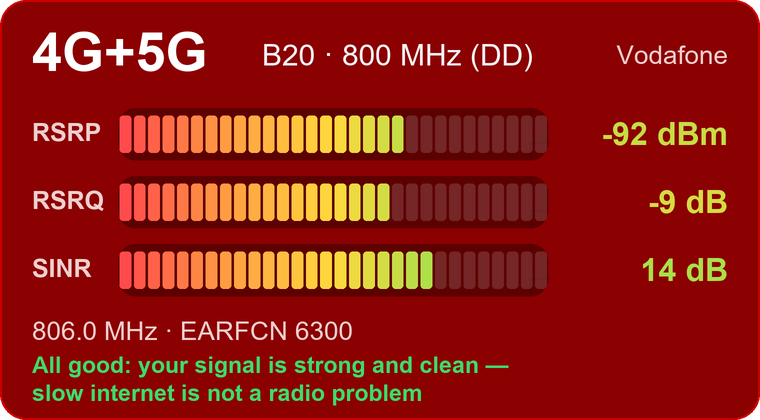
Android's own status bar shows a few bars. CNA's widgets show what is behind them: the network type (2G, 3G, 4G, 4G+5G or 5G), the band you are on, your operator, and the signal itself as a colour meter that runs from red (weak) to green (strong), updated about once a second while the screen is on.
There are two widgets: CNA Live Signal for what is happening now, and CNA Signal History for how it has been over the last minutes or hours. Both are in CNA's red, both can be made as small or as large as you like, and tapping either one opens the Geographical view.
The widgets need CNA's location permission, because Android treats the cell information they read as location data. They never look up tower locations, so they do not use any of your lookups.
The top line shows the network type, the band (with its name, for example B20 · 800 MHz) and your operator. Below it sits the RSRP meter, the strength of the signal from your tower, with its value in dBm. The meter is a row of segments: the colour of each segment is fixed (red on the left, through orange and yellow, to green on the right) and the segments light up as far as your signal reaches.
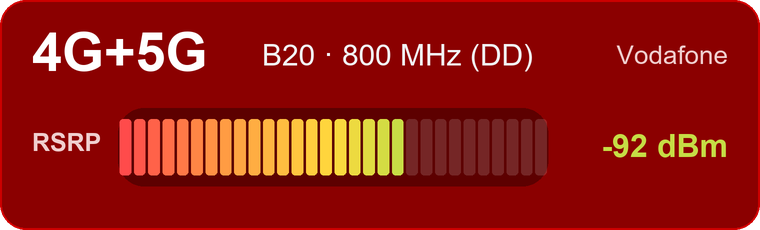
The widget pictures on this page are illustrations with example values. How a widget looks on your phone depends a little on your launcher.
| Meter | What it tells you |
|---|---|
| RSRP | How strong the signal from your tower is. Around −70 dBm or better is full; below −115 dBm is weak. |
| SINR | How clean the signal is compared with noise and interference. It is the best single predictor of speed. |
| RSRQ | The quality of the signal relative to everything received on the channel. It drops when your cell is busy, even if the signal itself is strong. |
RSRQ and SINR often agree, but not always: a heavily loaded cell can show a poor RSRQ and a good SINR, which means the slowness is load and not radio. Showing both lets you tell the difference.
On a tall enough widget, CNA adds one coloured line that says in plain words whether a poor connection comes from your position or from the network:
| You see | When |
|---|---|
| All good | Strong signal and clean quality. If the internet is slow, the radio is not the cause. |
| Coverage: fair | The signal is middling (about −105 to −115 dBm); fine for most uses, may slow indoors. |
| Coverage: weak | The signal at your spot is weak (−115 dBm or lower). Moving to a window or outside will usually help. |
| Network: busy or noisy | The signal is strong, but the quality is poor: the cell is loaded or interfered. Expect slower speeds here. |
| Network: only 3G / 2G | No 4G was reached, or your phone fell back to an older network. |
| Network: no service | The phone is not registered on any cell: outside coverage, or check the SIM and airplane mode. |
The verdict judges the radio link only. It cannot see congestion deeper in the operator's network or a slow website.
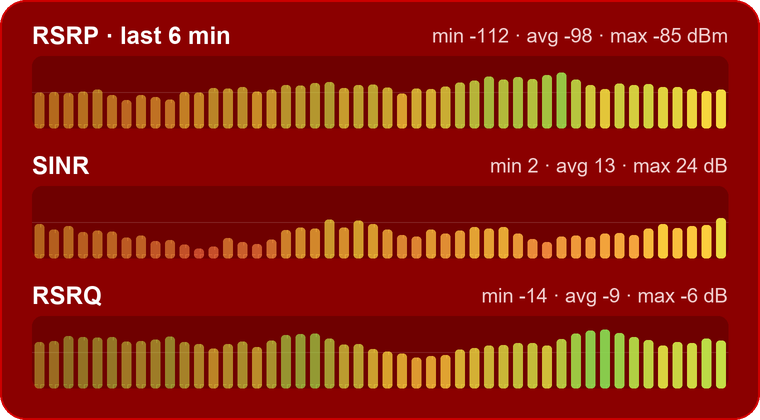
The history widget draws your signal as a scrolling bar graph, newest on the right, each bar coloured red to green by its value, with a min / avg / max line above it. It is the quickest way to see when your signal dropped and how long it stayed down.
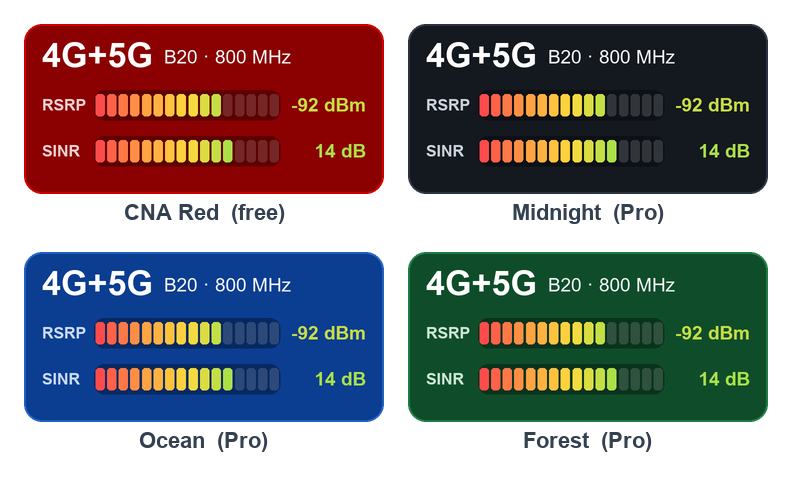
When you add a widget, a small settings screen opens. (On Android 12 and later you can reopen it later by long-pressing the widget and choosing Reconfigure.) Free users see every option, but the Pro ones are marked with a lock; tapping one explains what it does.
Switch on Signal alerts in Preferences and CNA watches your connection in the background and sends an ordinary Android notification when it matters. You choose which alerts you get, and whether they make a sound.
| Alert | When it fires | Plan |
|---|---|---|
| No service | The phone lost the network. Shows what you were connected to before. | Free |
| Dropped to 3G / 2G | Your phone fell back from 4G or 5G to an older network. | Pro |
| Weak signal | RSRP stays at or below the level you choose (−105 to −125 dBm) for about 25 seconds. It re-arms once the signal is clearly better again. | Pro |
| Poor signal quality | The signal level is fine, but SINR or RSRQ say the cell is busy or noisy: the case where the internet feels slow despite full bars. | Pro |
| Lost 5G | You went from 5G back to plain 4G. Off by default, because 5G on 4G networks comes and goes with data activity. | Pro |
| Band changed | The serving band is different, for example B3 to B20. Off by default; can be chatty while moving. | Pro |
| Back again | Service, 4G or 5G returned after one of the drop alerts. | Pro |
| Quiet hours | No alerts at all between two times you choose, for example 22:00 to 07:00. | Pro |
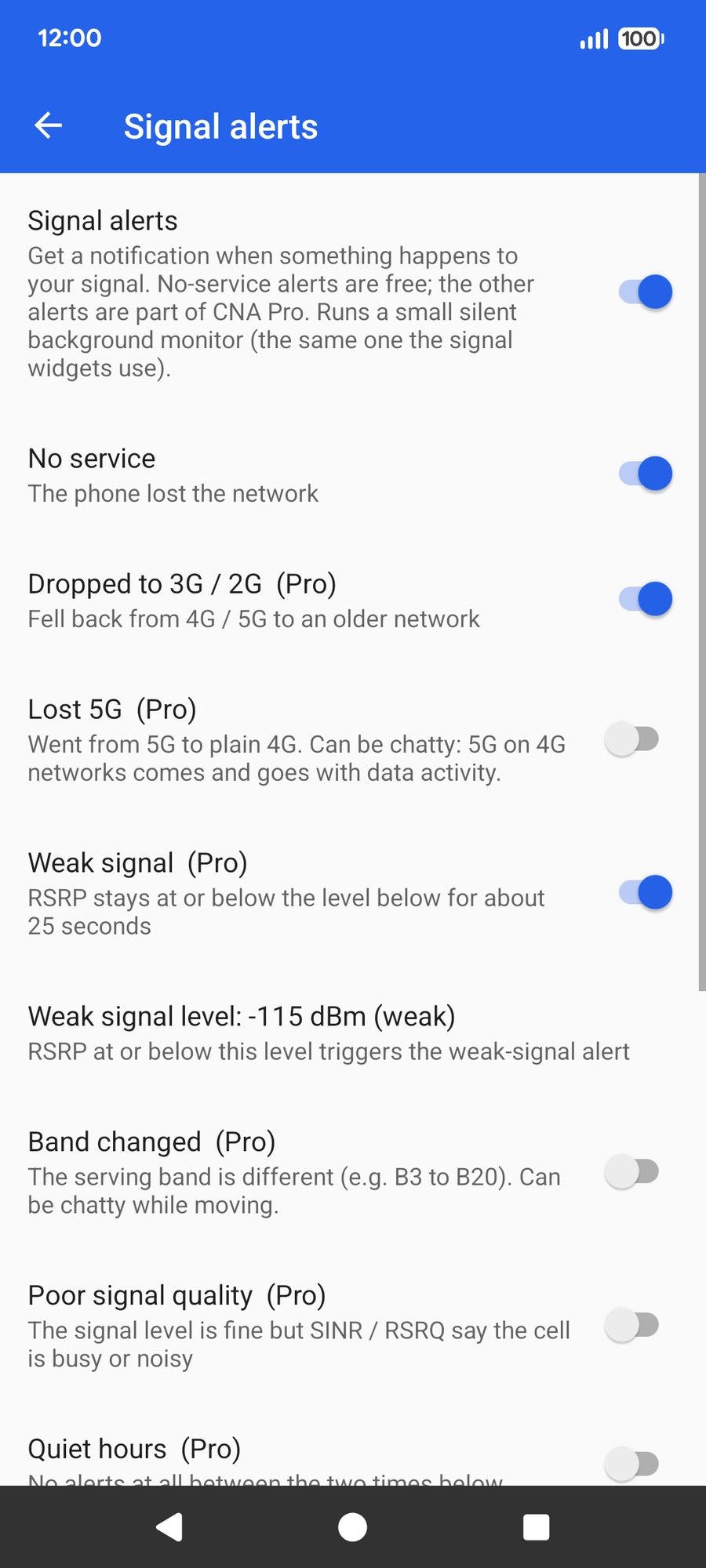
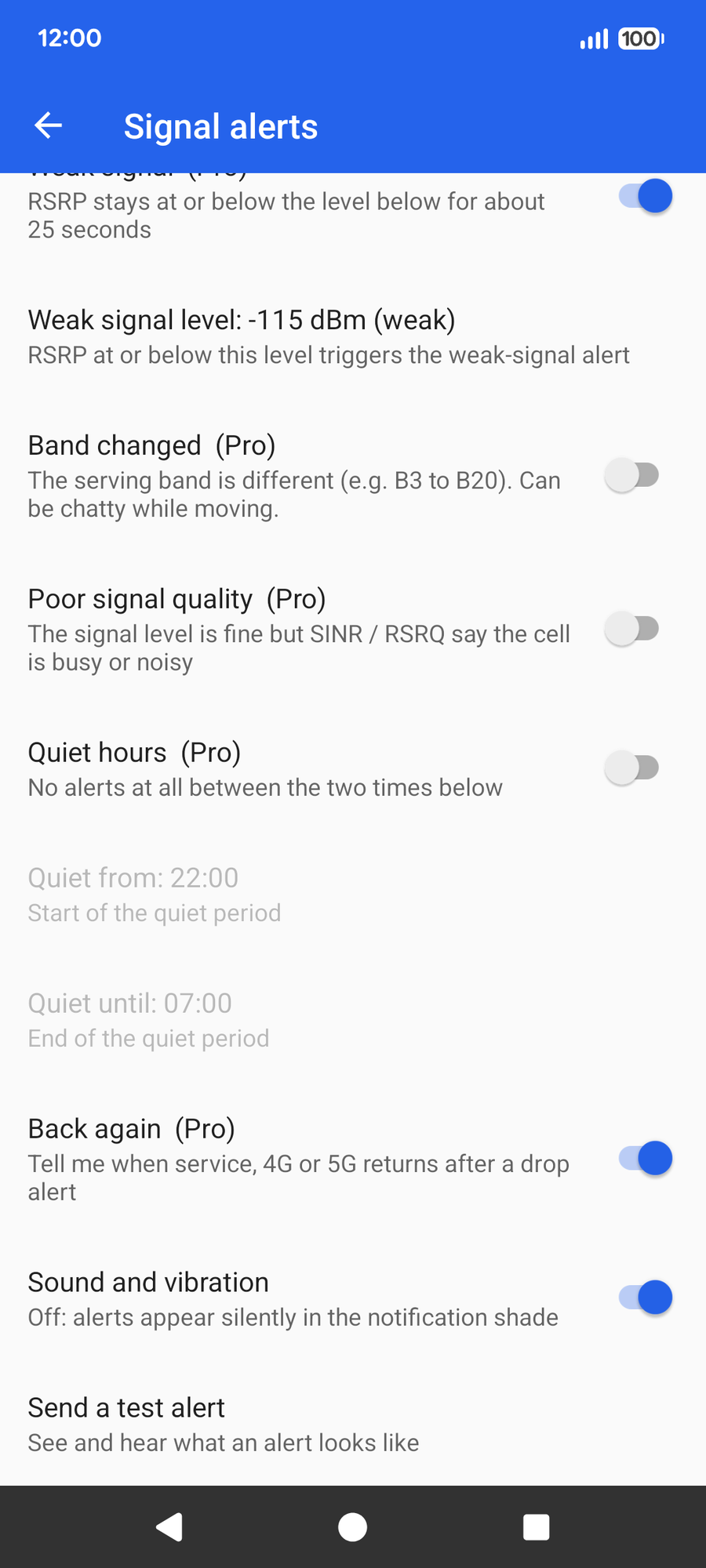
To avoid false alarms, a change of network type has to last for about 16 seconds before it counts, and each kind of alert waits at least a minute before it can fire again. The Sound and vibration option and a Send a test alert button are free for everyone.
The live and history widgets and the no-service alert are free. CNA Pro adds RSRQ and SINR, themes, a 24-hour history and the rest of the alerts, with a one-month free trial.
▶ Get CNA on Google Play